Chrome extension for Google Maps
Export Google Maps saved lists to CSV, Excel, and GPX
Scan starred places, Want to go, and custom lists in the same browser where you use Maps. Download a structured file in minutes—no copy-paste and no waiting for Google Takeout.
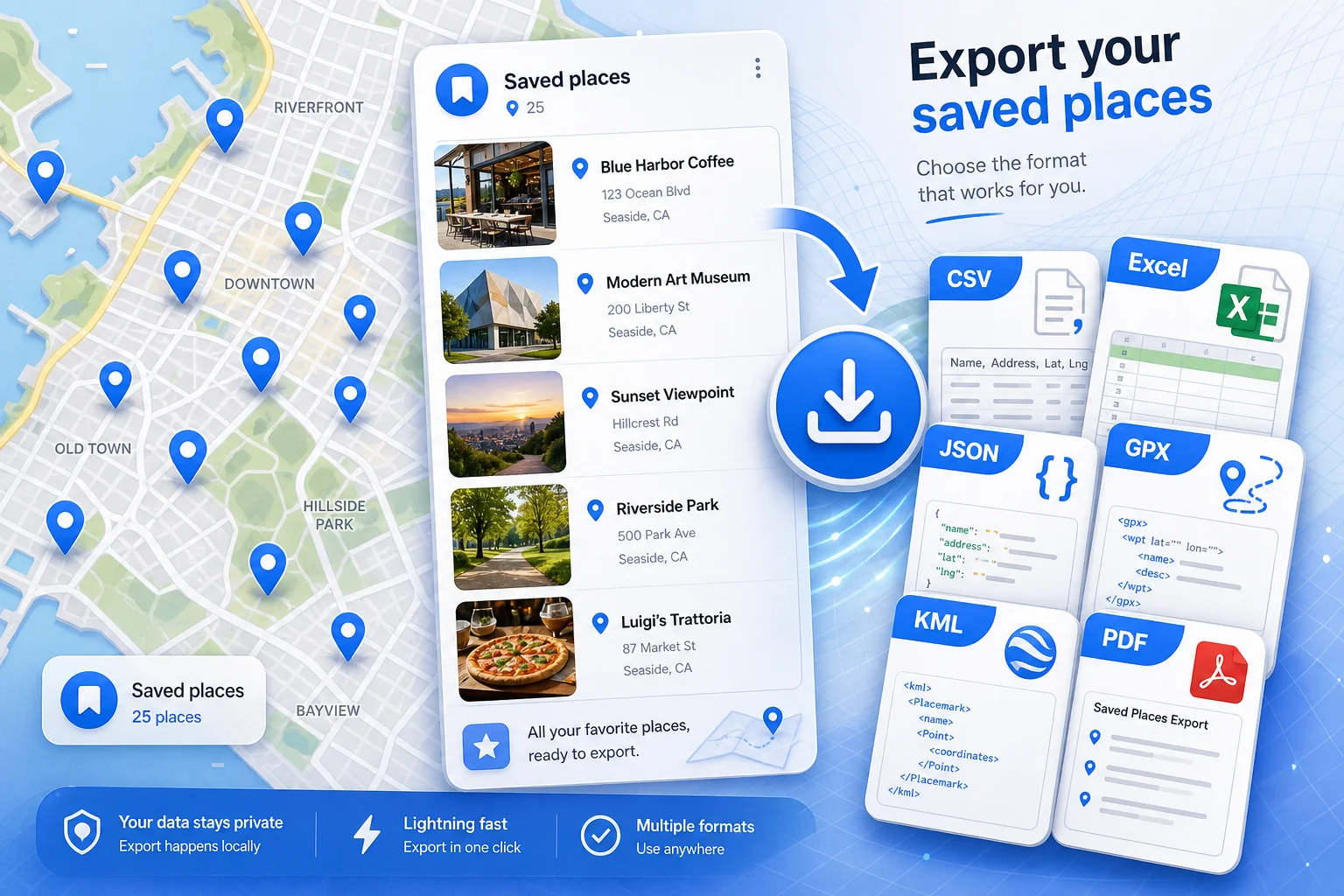
Works with your saved lists
Google Maps lets you save places. It does not let you download them.
You saved the places. Now you need them somewhere else—and copying each one by hand does not scale.
No bulk export
Google Maps lets you save places—but not download them as a spreadsheet or GPS file when you need them elsewhere.
Copying listings one by one
Getting names, addresses, coordinates, and Place IDs into Excel or a CRM still means opening every listing by hand.
Spreadsheets and GPS need files, not links
Trip planners, GIS apps, and custom dashboards need structured files—not screenshots or shared Maps links.
How it works
From install to download in four steps.
Install the extension
Add Maps List Export to Chrome and pin it to your toolbar.
Open Google Maps
Sign in to Google Maps in the same Chrome profile, then click the extension icon.
Scan a list
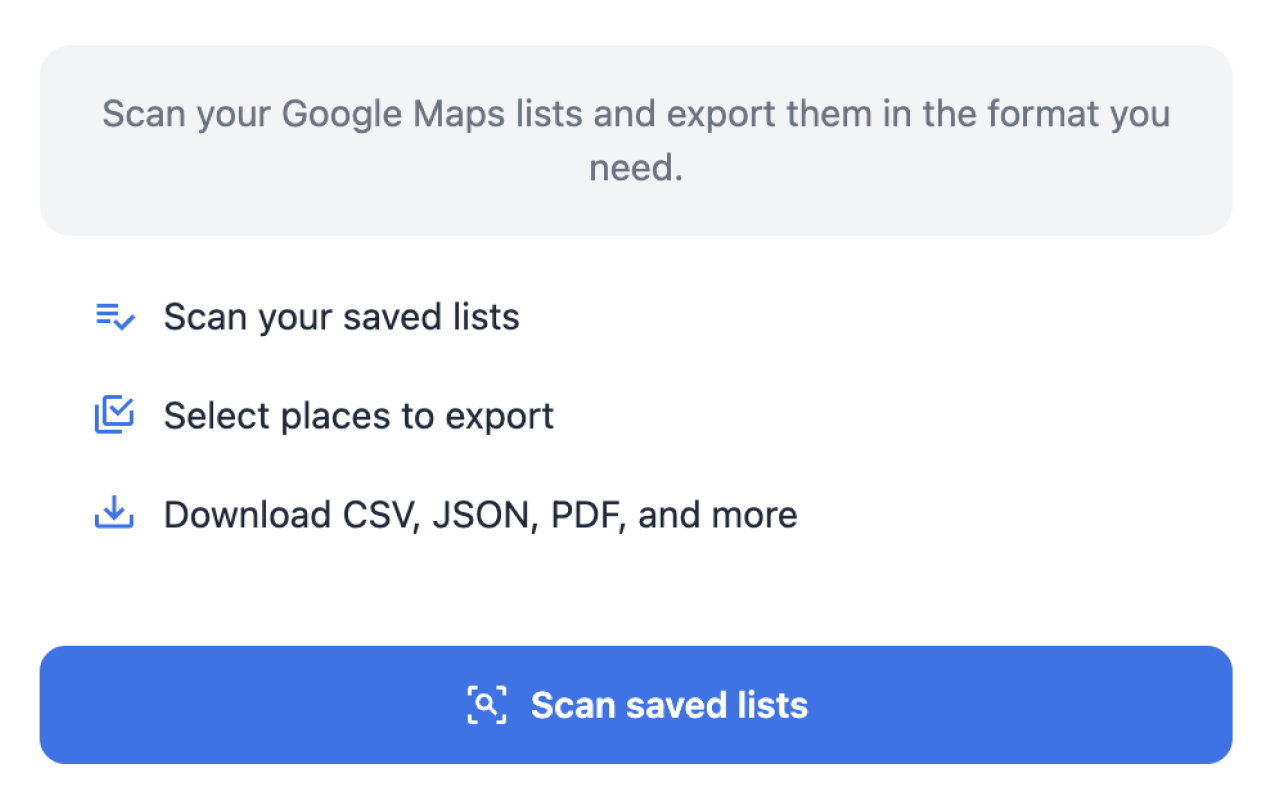
Pick a saved list and load every place with enriched details.
Export your file
Select places, choose fields, and download CSV, Excel, GPX, or any supported format.
Everything you need to export a list
Live scanning, enrichment, and local export—all inside a Chrome extension on Google Maps.
Live scan from Maps
Load starred places, favorites, want-to-go, travel, and custom lists directly—no waiting for a Takeout ZIP.
Export only what you need
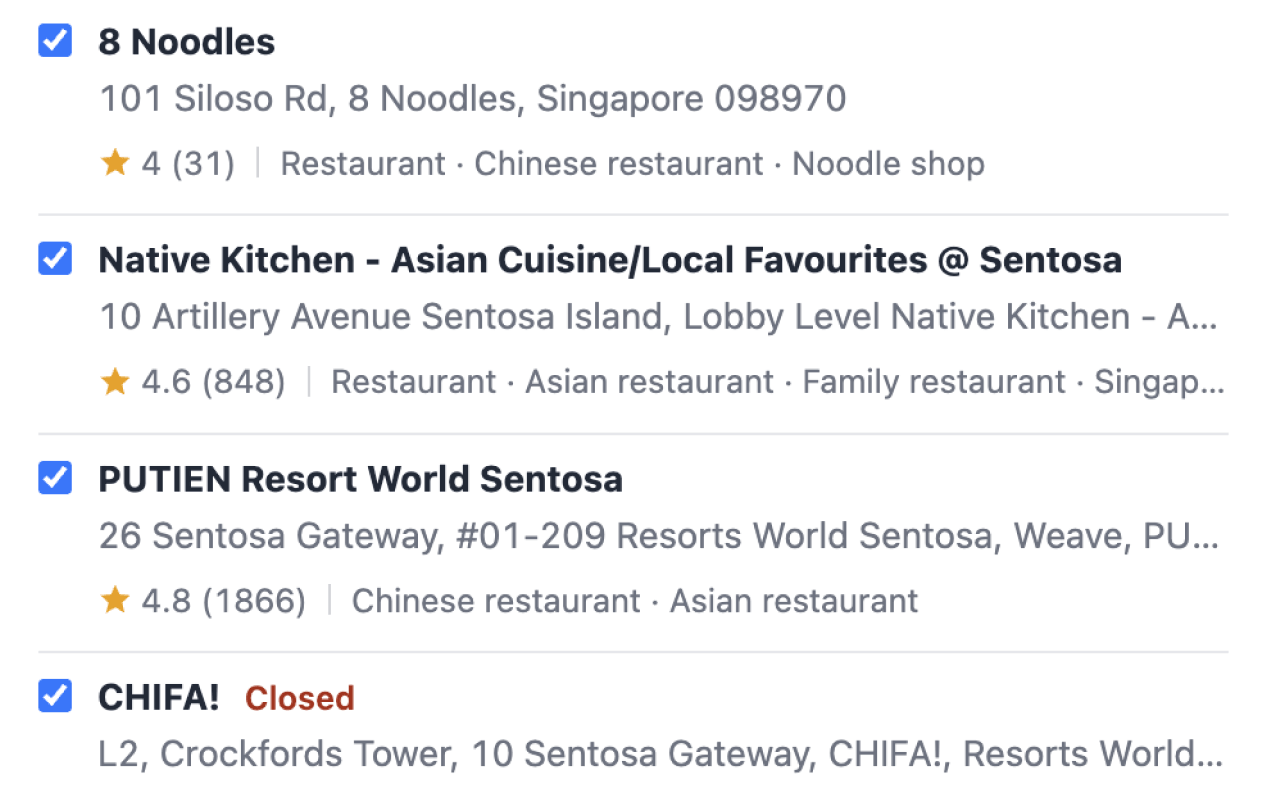
Check the places you want before you export—no all-or-nothing dumps.
Choose your columns
Pick the fields you need: address, phone, rating, hours, Place ID, photos, notes, and more.
Cut a long list down
Filter by rating, category, or text search before you export.
Phone, hours, ratings included
Enrichment pulls phone numbers, websites, ratings, and photos during the scan—not just names and pins.
Stays in your browser
List scanning and export run locally in Chrome. No Google API key required.
One list, eight file types
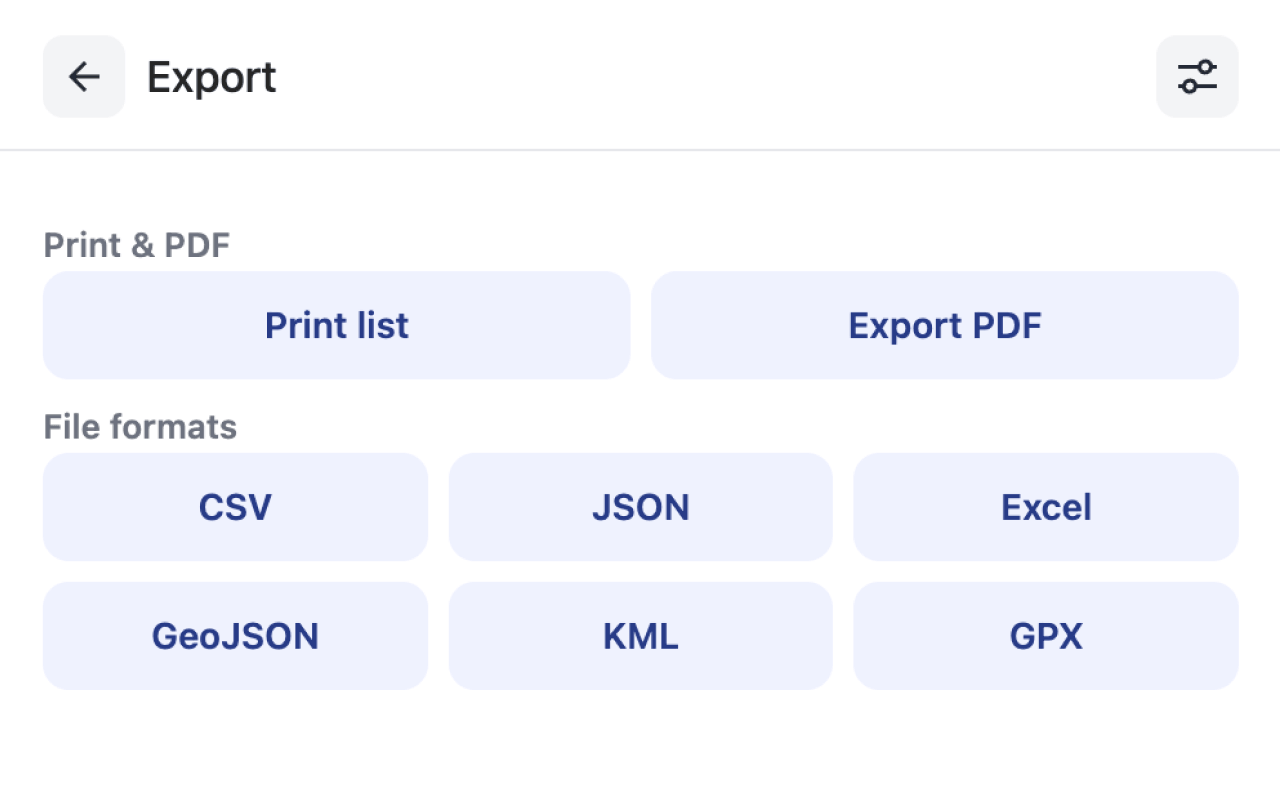
Pick the file type that matches your workflow—spreadsheets, maps, GPS, or print.
More than a name and a pin
Choose the columns you need. Enrichment adds phone, website, ratings, hours, and photos during the scan.
Location
- Name
- Address
- City
- State
- Country
- Lat/Lng
- Plus Code
Contact & business
- Phone
- Website
- Rating
- Reviews
- Category
- Hours
Identifiers & meta
- Place ID
- CID
- Maps URL
- Photo URL
- Notes
- Date added
See it in action
Scan lists, select places, and export—in a few clicks from Google Maps.
Who it's for
Anyone who saves places in Google Maps and needs them outside the app.
Travel planners
Print trip lists for offline use or load waypoints into GPS apps—without retyping every stop.
Researchers & journalists
Archive place collections with addresses, coordinates, and metadata—not just links or screenshots.
Sales & operations
Pull client location lists into spreadsheets or CRMs without manual data entry.
Developers
Export JSON or GeoJSON and pipe saved places into dashboards, apps, and data pipelines.
Simple pricing for list exports
10 places per list on Free · unlimited on Pro · cancel anytime.
Free
Try every export format and field option with a generous free limit per list.
- CSV, Excel, JSON, GeoJSON, KML, GPX, PDF & Print
- Scan starred places and saved lists
- Custom export fields and filters
- Up to 10 places per list
- Unlimited exports are not included
Pro
For travelers, researchers, and teams who export large Google Maps lists regularly.
- Everything in Free
- Unlimited place exports per list
- All export formats without caps
- Priority support from the ExtensionsFox team
- Updates included while subscribed
Frequently asked questions
Do I need Google Takeout?
No. The extension scans your saved lists directly from Google Maps in Chrome—no Takeout export or ZIP upload required. If you already have a Takeout ZIP, use our free Takeout converter tool to turn it into CSV, KML, GPX, or GeoJSON in your browser.
Which Google Maps lists can I export?
Starred places, favorites, want-to-go lists, travel plans, and custom saved lists—including shared lists you can access while signed in.
What export formats are supported?
CSV, Excel (XLSX), JSON, GeoJSON, KML, GPX, PDF, and a print-friendly view. Pick the format that fits your spreadsheet, map, or GPS workflow.
What is included in Free vs Pro?
Free: up to 10 places per list, every format and field option. Pro: unlimited exports per list, priority support, and updates while subscribed.
Do I need a Google API key?
No. The extension uses your signed-in Google Maps session in Chrome. Scan and export directly—no developer setup.
Do you upload my Google Maps data to your servers?
List scanning and file generation run locally in your browser. We do not upload your saved places to ExtensionsFox servers for export. See our Privacy Policy for billing and support data.
Is Maps List Export affiliated with Google?
No. Maps List Export is published by ExtensionsFox and is not endorsed by, affiliated with, or sponsored by Google. Google and Google Maps are trademarks of their respective owners.
Who can I contact for help?
Email help@extensionsfox.com for installation, billing, or troubleshooting.
Already have a Takeout ZIP?
Convert Takeout files and map formats in your browser—no extension required.
More tools from ExtensionsFox
Other Chrome extensions for Google Maps workflows—built by the same team.

Export your first 10 places free
Install Maps List Export, open Google Maps, and download your first list in minutes.